
Administrator Access
Routine user administration can be performed directly by an authorized Account Administrator. MedixSafe Support does not need to be involved when an administrator is able to make the change within the Link Admin Console.
Add a User
To add a new user to your MedixSafe system:
1. Navigate to Users in the Link Admin Console and select Add User.
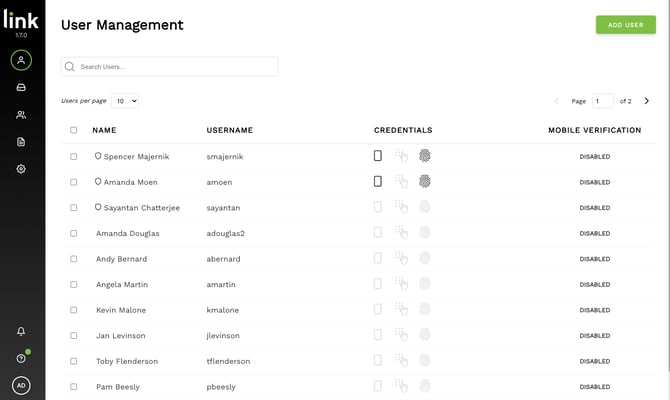
2. Enter the user's required information.
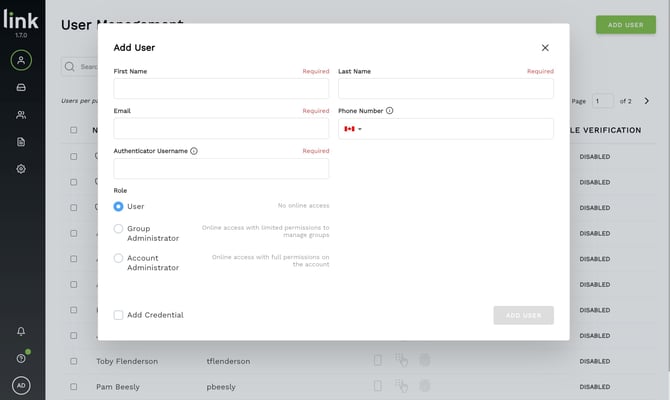
3. Assign the appropriate permissions and role.
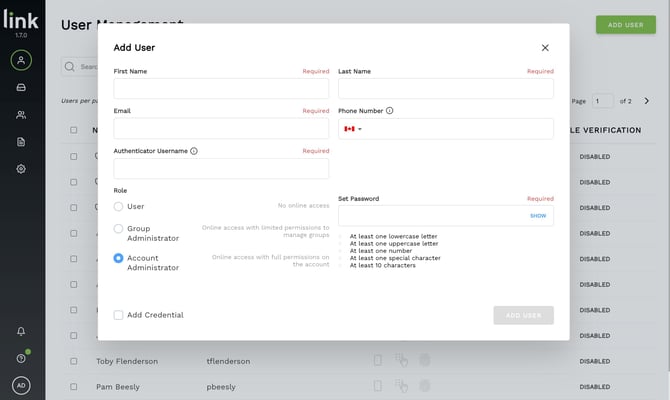
Understanding User Roles
Most users should be added as a basic User. Additional roles can be assigned when the user requires additional access.
- Group Administrator — Can manage the groups to which they have administrative access.
- Account Administrator — Has full access to the Link Admin Console and can perform administrative functions, including managing users and their permissions.
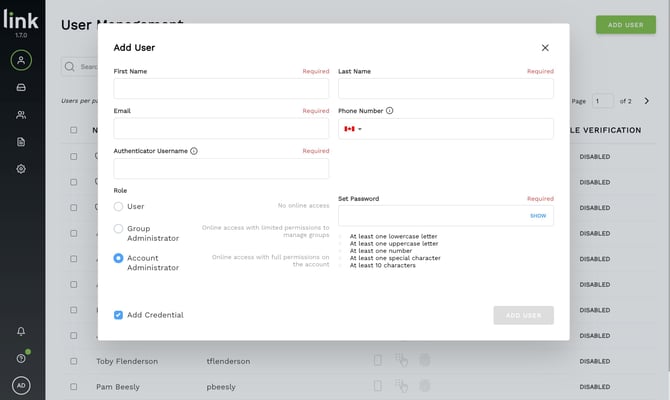
Add a Credential
If the user needs a Card or User ID, select Add Credential.
Credentials may also be added after the user has been created.
Note: You can also do this later on in the following section, INSERT LINK
Adding a Card
Present the card at the appropriate device, then select the Refresh icon in the Link Console. The most recent transaction will appear and can be associated with the user.
Adding a User ID
Enter a unique 4–6 digit User ID at the device and press Enter. Then select the Refresh icon in the Link Console.
Please note you will only need to press the "#" key if you decide to use anything less than 6 digits for your User ID. Exsmple: User ID is 1234 (4 digits) then press "#" key. If your User ID is 123456 (6 digits), you do not need to press the "#" key.
Note: If your safe is equipped with an LCD screen, when you tap your Card or enter a User ID, it will say Denied until the credential is added.
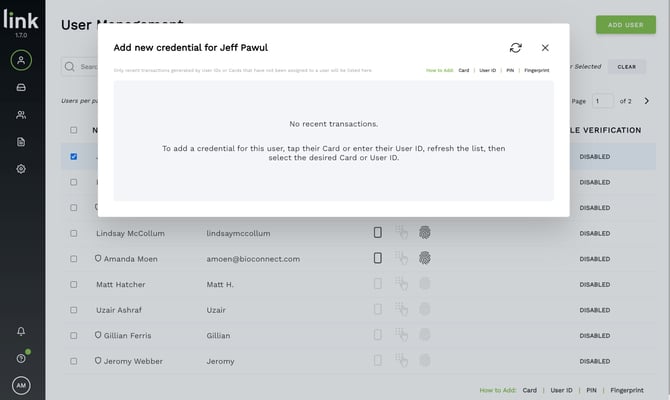
6. The system will search for the most recent transactions, where you will see the transactions. Once you've located the correct transaction, select 'Add'.
Edit an Existing User
Account Administrators can edit existing users directly from the Link Admin Console. This allows administrators to keep user information, permissions, roles, and access current without contacting MedixSafe Support.
- Navigate to Users in the Link Admin Console.
- Locate and select the user you want to modify.
.png?width=670&height=179&name=image%20(36).png)
- Select Manage and Edit Details
.png?width=670&height=188&name=image%20(34).png)
- Update the user's information, permissions, or assigned role as needed.
.png?width=670&height=415&name=image%20(35).png)
- Review the changes and save the updated user record.
Important:
Changing a user's role or permissions can change the level of access available to that user. Take care when assigning administrative roles.
Delete a User
Account Administrators can delete users directly from the Link Admin Console.
- Navigate to Users in the Link Admin Console.
- Locate and select the user you want to modify.
- Select Manage and select Delete User.
- Confirm the deletion when prompted.
Changing a User's Role or Permissions
When editing a user, an Account Administrator can modify the user's assigned role or permissions when appropriate.
For example, a user can be changed from a basic User to a Group Administrator when they need to manage groups. An Account Administrator role should only be assigned when the user requires administrative access to the Link Admin Console.
Changing or Adding Credentials
User credentials can be added or updated as part of user administration. This may include associating a Card or User ID with the appropriate user.
If a credential needs to be added after the user was originally created, the administrator can return to the user's account and add the credential without contacting MedixSafe Support.
When Should I Contact MedixSafe Support?
MedixSafe Support is available when administrator intervention is not possible or when a technical issue prevents the administrator from completing the required action.
Examples include:
- Password recovery or account access issues.
- An administrator is unable to access the Link Admin Console.
- A technical problem prevents a user or credential from being properly added or modified.
- Other situations where administrator intervention is not possible.
Administrative Change Authorization
For security purposes, MedixSafe cannot make administrative-level changes to a client account based solely on a request from a standard user.
Requests for administrative changes must originate from an authorized administrative contact. This means an individual who is either:
- An Account Administrator within the MedixSafe Link platform; or
- An individual identified as an authorized administrator or administrative contact within MedixSafe's internal account records.
This authorization requirement applies to requests such as granting administrative access, changing administrative roles, or otherwise modifying account-level administrative privileges.
These controls help protect the security and integrity of your account and ensure that administrative access is only granted or modified at the direction of an appropriately authorized individual.
Quick Reference
| Action | Who Can Perform It? | MedixSafe Support Required? |
|---|---|---|
| Add a user | Account Administrator | No |
| Edit a user | Account Administrator | No |
| Change user permissions | Account Administrator | No |
| Assign administrative role | Account Administrator | No |
| Password recovery | MedixSafe Support may assist | When required |
| Request administrative account changes | Authorized Administrator / Contact | Authorization required |