
Use User settings to choose which device and account alerts you receive by email (and optionally by SMS). Preferences are personal — they apply only to your administrator account.
Who can use this
Only Administrators and Group administrators can open User settings and manage notification preferences. Standard users do not see this option.
Before you start
- Sign in to the MedixSafe console as an administrator.
- Confirm the email address on your user profile is correct — device notifications are sent there.
- If you plan to use SMS, confirm a valid phone number is on your profile.
How to open notification settings
- Open User Management from the console sidebar.
- Select your user in the list.
- Choose Manage, then Settings.
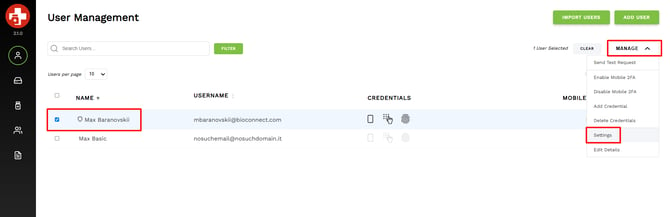
Open User settings from Manage
The User settings dialog opens with your notification preferences.
Use the toggle next to each option to opt in (on) or opt out (off). Close the dialog when you are finished — your choices are saved for your account.
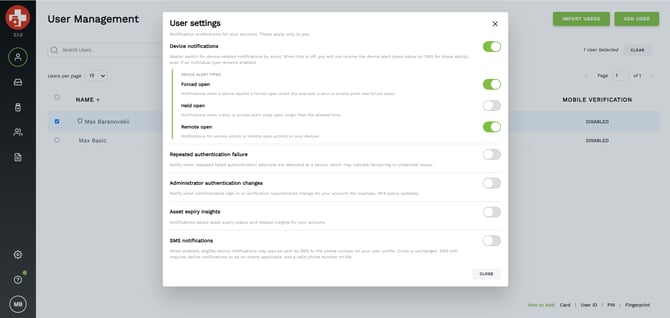
Notification types (overview)
|
Setting |
What it does |
|---|---|
|
Device notifications |
Master switch for device-related email alerts. When this is off, you will not receive the device alert types below (or SMS for those alerts), even if an individual type remains enabled. |
|
Forced open |
Alerts when a device reports a forced-open event (for example, a door or access point was forced open). |
|
Held open |
Alerts when a door or access point stays open longer than the allowed time. |
|
Remote open |
Alerts for remote unlock or remote open activity on your devices. |
|
Repeated authentication failure |
Alerts when repeated failed authentication attempts are detected at a device, which may indicate tampering or credential issues. |
|
Device configuration changes |
Alerts when device verification requirements are changed by an admin (for example, going from card+PIN to card only). |
|
Narcotics expiry alert |
Alerts about narcotics expiry status (expiring soon and recently expired) and related insights for your account. |
|
SMS notifications |
When enabled, eligible notifications will also be sent by SMS to the phone number on your profile. Email is unchanged. |