
Preparing for Programming
Programming can be done in bulk; you can program several dozen vials at a time, provided that they are the same type of drug and have the same expiry date.
Any tracking-enabled MedixSafe safe can be used for programming. This provides backup options in situations where your normal headquarters or station safe is unavailable – and flexibility in large-scale emergencies, where you may need to restock vehicles directly from a hospital or other nearby agency.
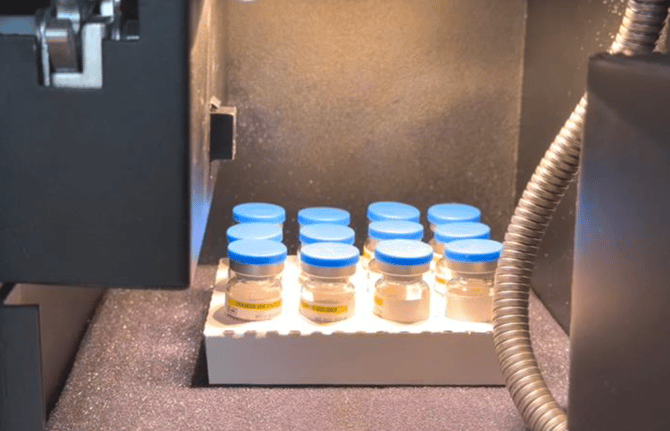
Labelled vials should be placed into the safe in an organized fashion:
Ensure your Smart Tags are not resting against the metal walls of the safe.
When programming large numbers of vials at once, place the vials in an upright position as shown below (i.e., so the Smart Tags are not pointing directly at the floor or directly at the ceiling of the safe).
Programming the Smart Tags
Once the medication has been placed into the safe, click the [Add Narcotic] button: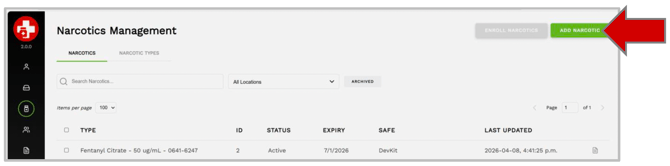
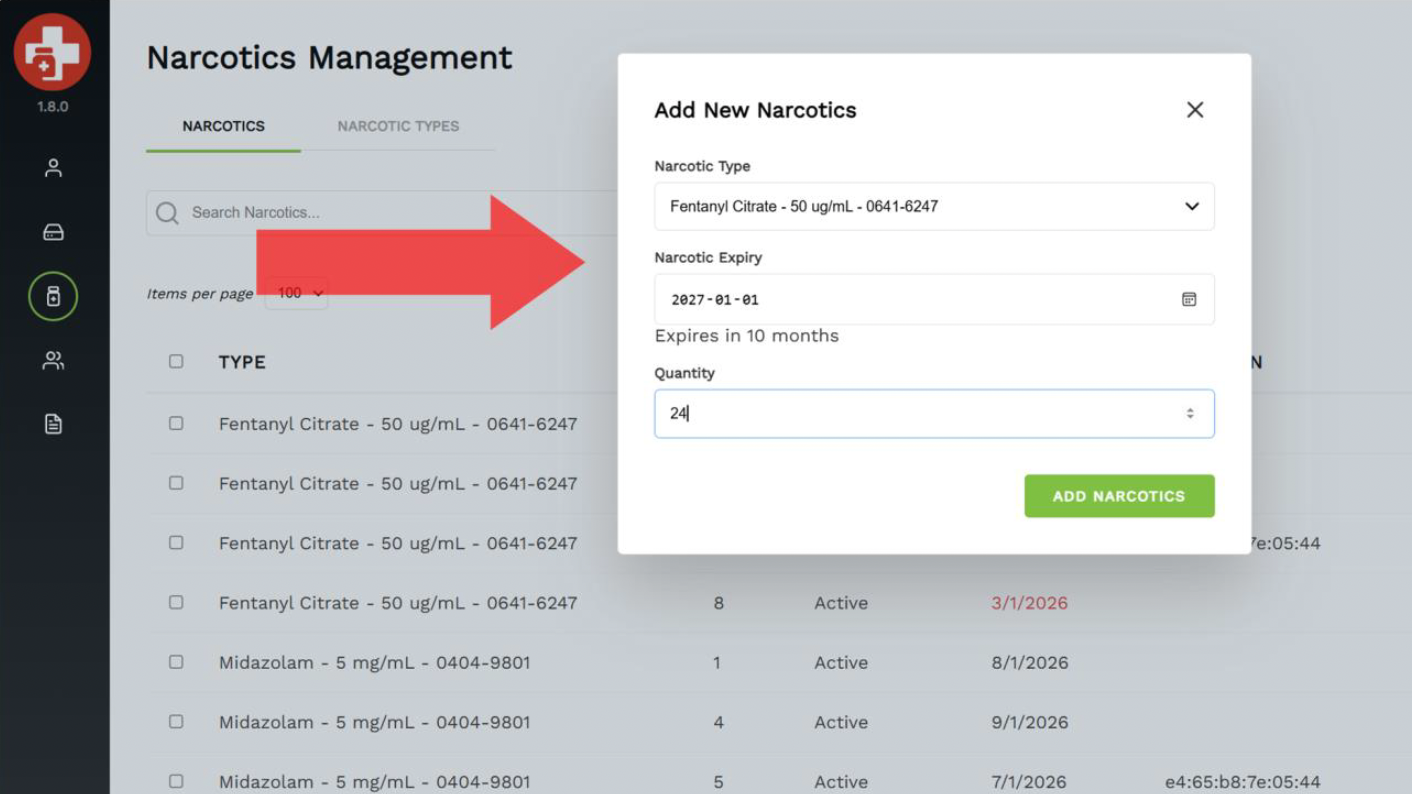
You will be prompted to select the Narcotic Type from the drop-down list, and the E piry Date. Enter the number of Smart Tags that you will be programming into the Quantity field, and then click [Add Narcotics]:
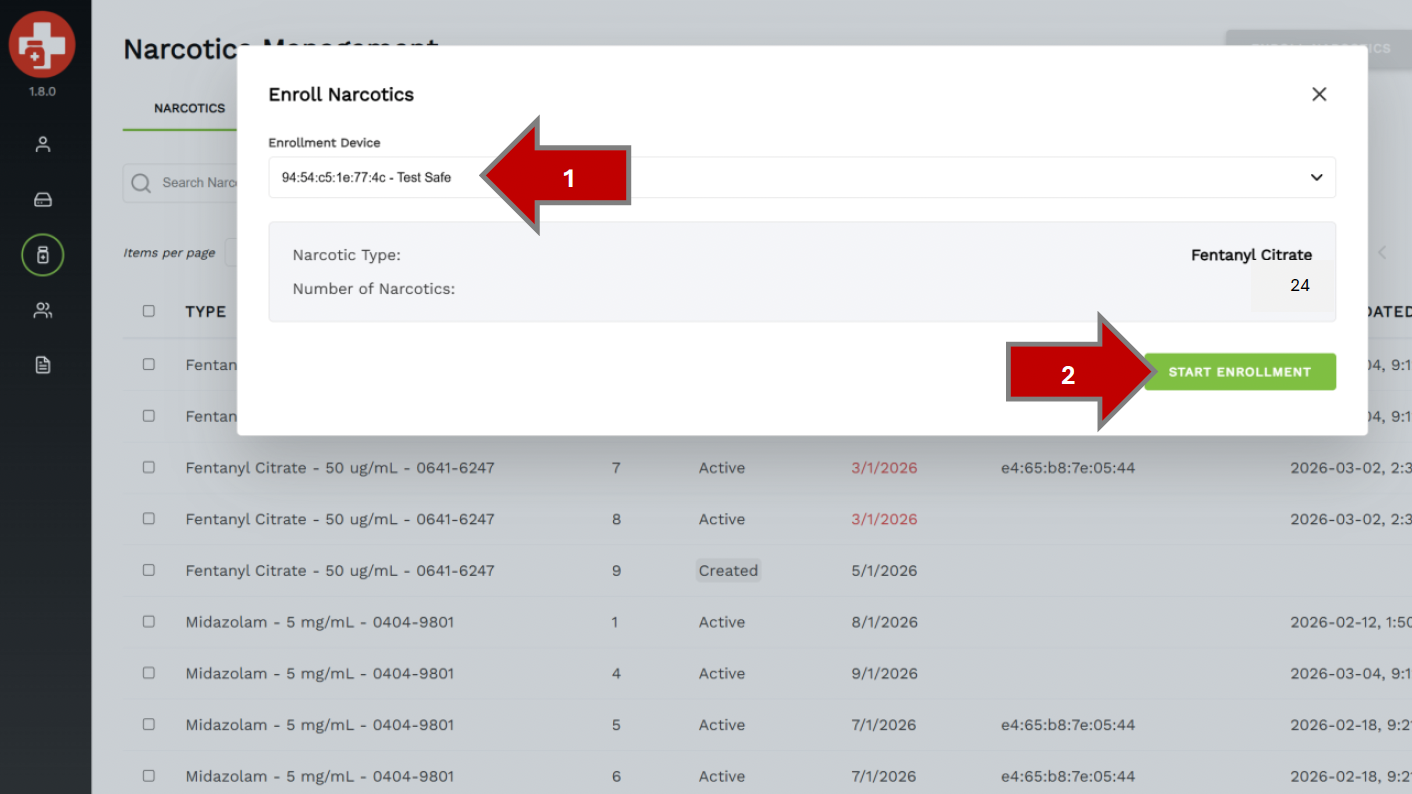
The next step is to select the safe that you will be using to program the tags. Any safe can be selected, provided that it is online. (If you are using Groups, then you must be either a Global Administrator, or a Group Administrator for that safe.) Once you have selected a safe from the drop-down list, click the [Start Enrollment] button:
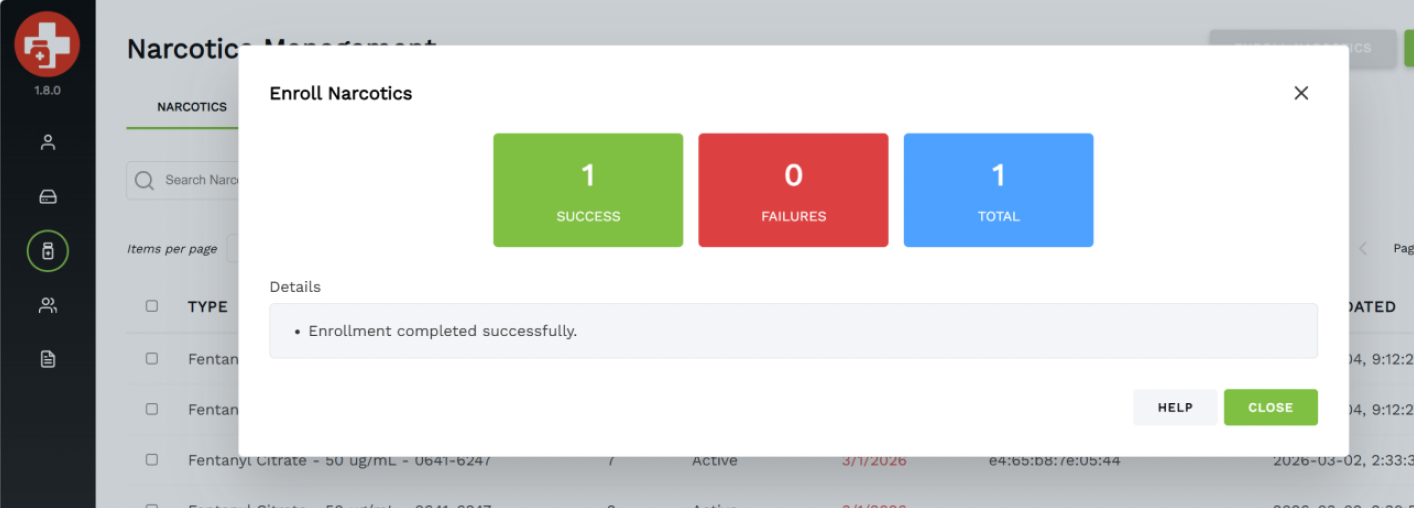
After the enrollment has completed, both your web browser and the screen of the safe will report whether the programming was successful:
Potential Errors and Solutions
If an error occurs while programming, a failure message will appear both on the screen of your safe and in your web browser.
Your MedixSafe runs a series of checks before programming starts; if any of these tests fail before programming starts, then you may see one of the following messages:
- No RFID module tag detected. Please ensure the safe has an RFID module connected. - Smart Tags can only be programmed in safes that are equipped with Narcotics Tracking. If you receive this message on a Narcotics Tracking safe, please contact us so that our support team can help remotely diagnose and resolve the issue.
- Too few tags detected. Please ensure all narcotics are properly placed in the safe. - Confirm that the quantity you entered matches the number of Smart Tags actually in the safe. If the quantity is correct, ensure that none of the Smart Tags are touching the walls of the safe, or pointing directly at the ceiling or floor during programming.
- Too many tags detected. Please remove any unauthorized items from the safe. - Confirm that the quantity you entered matches the number of Smart Tags actually in the safe. If the quantity is correct, ensure that you do not have any unprogrammed tags sitting directly on top of the safe, or directly in front of the safe door.
- Unapproved RFID tag detected. Please use a Medi Safe Smart Tag. - Ensure that you are using MedixSafe Smart Tags. Check that you do not have any third-party RFID tags inside the safe during programming. (Third party tags will not impact inventory counts, but they cannot be in the safe during programming.) Some drug carriers (like Pelican® cases) may have an anti-shoplifting tag applied to them if they were purchased from a retail supplier.
- Unable to enroll RFID tag. - One or more Smart Tags was not responding properly when the safe attempted to communicate with it; the Smart Tag may need to be repositioned inside the safe, or it may be defective. Ensure that tags are not creased or bent during application. Ensure that none of the Smart Tags are touching the walls of the safe, or pointing directly at the ceiling or floor during programming. See the Tap-to-Scan section for instructions on quickly identifying non-responsive tags.
If any of these errors are reported, then no tags will have been programmed; leave all of the items in the safe.
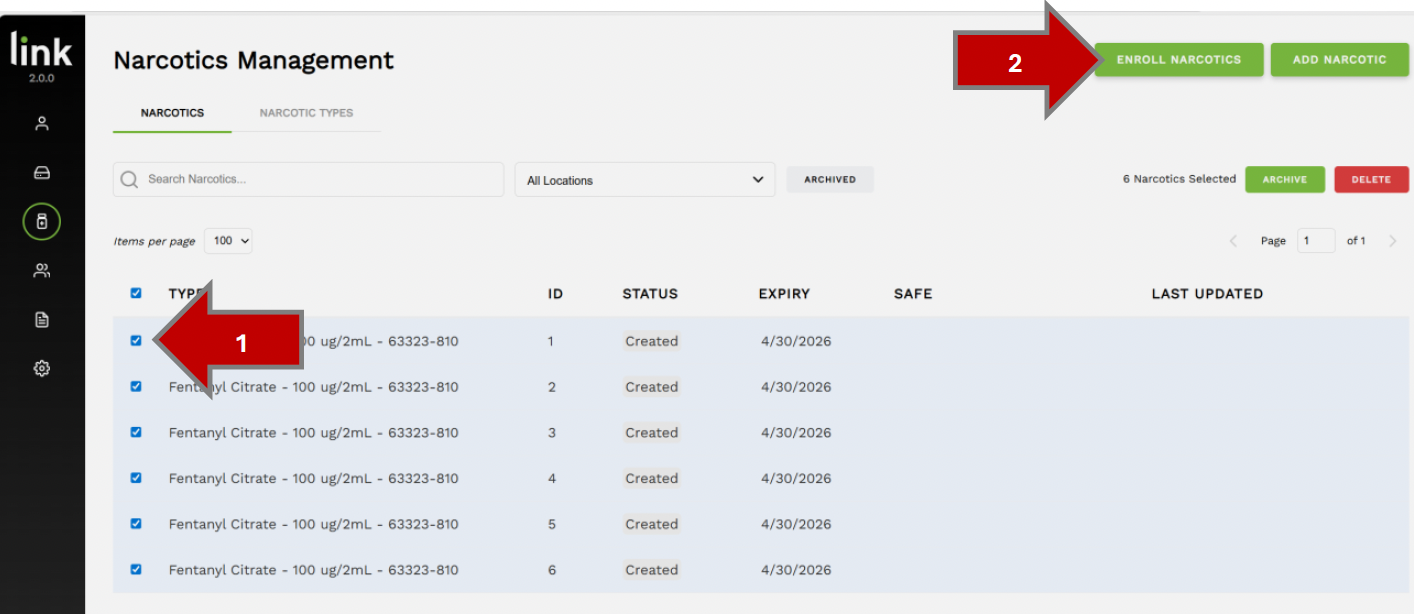
Once the error has been corrected, you can re-attempt the programming; in your web browser, select each of the unprogrammed narcotics (they will be in the “Created” state), and then click the [Enroll Narcotics] button (see below):
It is unusual for an error to occur once programming begins but, if it does, you may see one of the following messages:
- Enrollment was cancelled. - Do not open the door of the safe during programming. This will immediately cancel the programming of the tags.
- Failed to write to RFID tag. Please try again. - One or more Smart Tags stopped responding during programming; the Smart Tag may need to be repositioned inside the safe. Ensure that none of the Smart Tags are touching the walls of the safe, or pointing directly at the ceiling or floor during programming.
The error message, both on the screen of the safe and in your web browser will indicate the number of “Failed” tags. See the Tap-to-Scan section for instructions on quickly identifying unprogrammed tags. Return the unprogrammed tags to the safe, and then follow the instructions, above, to re-run the [Enroll Narcotics] operation for those tags.